BRAVO cluster
- BRAVO-M : 172.19.1.10
- BRAVO-01: 172.19.1.11
- BRAVO-02: 172.19.1.12
- BRAVO-03: 172.19.1.13
- BRAVO-04: 172.19.1.14
- BRAVO-05: 172.19.1.15
- BRAVO-06: 172.19.1.16
General settings :
Always set the display to 100% in scaling.
For ATLAS-01 to ATLAS-04 move taskbar to the TOP.
For all nodes, make sure it hides/shows on hover.
Synchronization:
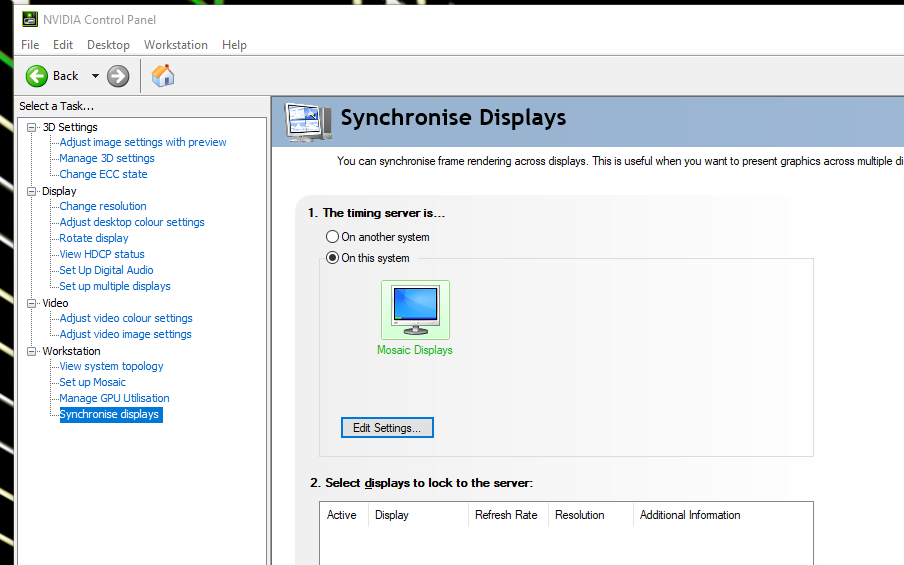
Synchronization master is ATLAS-01. Always restart the sync master last.
Sync master:
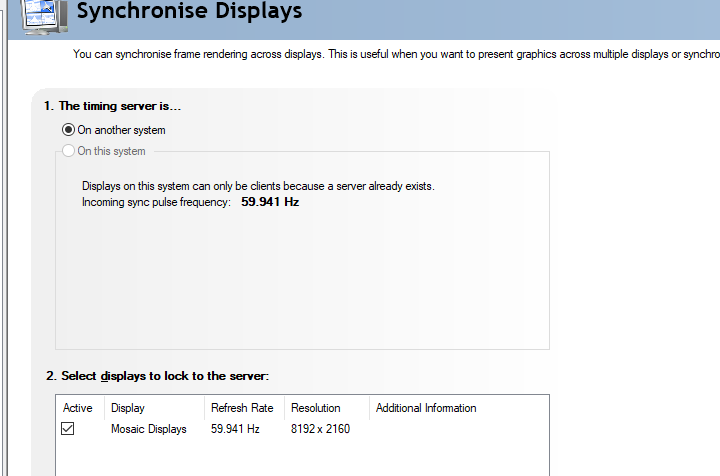
Sync nodes:
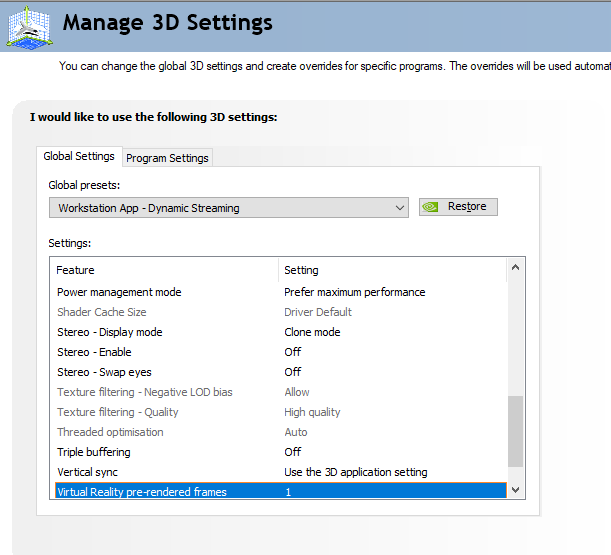
NVIDIA Settings:
Active stereo (emulated through dual DP-ports, i.e. passive stereo)
To enable active/passive stereo you need to set "Stereo –Enable" to "On". Swap eyes should not be needed if you use the GPU connection setup as specified in "SBS setup" below. "Stereo – Display mode" needs to be "Clone mode".
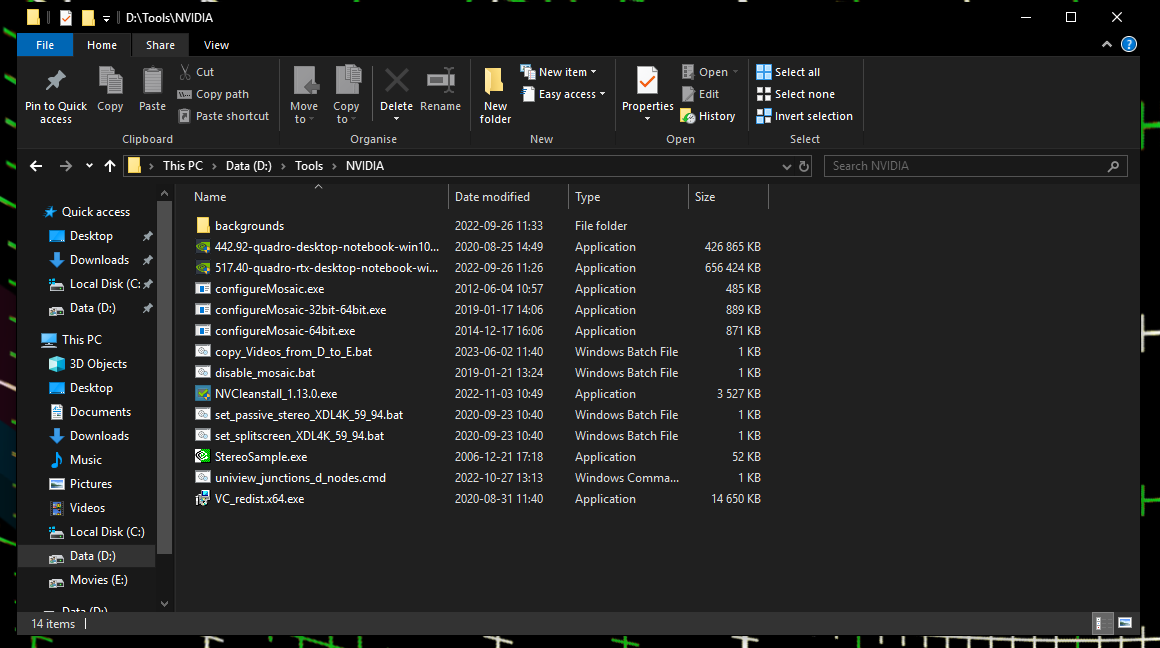
Activation and disable of active stereo can be done through two scripts (set_passive_stereo_XDL4K_59_94.bat) and (disable_mosaic.bat). Always remember to change to the correct resolution (4096x2160) for both displays, before trying to set passive stereo.
SBS (Side-by-side) setup
It is important to set "Stereo –Enable" to "Off" when utilizing SBS stereo.
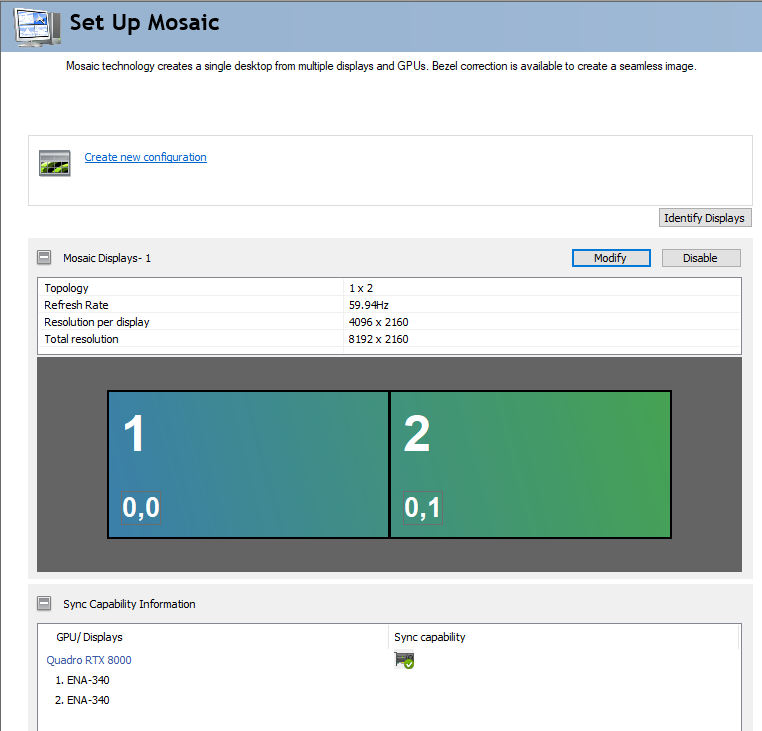
GPU connection cords: Always connect the LEFT display to the top DP port in each computer (as it is mounted in the rack). Then connect the RIGHT display beneath it. Always remember to change to the correct resolution (4096x2160) for both displays, before starting Mosaic configuration. Then you can setup SBS as this in the Mosaic configuration:
Uniview
WATCHOUT
We have seven Dell Rack 7610 computers with WO installed, as a six node WO cluster, these are connected via the Matrix to our six projectors.